Go Button: Programming Cues, Fades, and Control with Flic
Programming the show's musical sequence
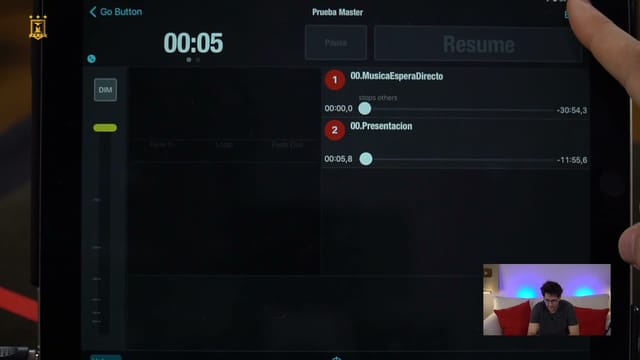
Borja Montón builds a sample sequence in Go Button for iPad and explains how to decide what should happen when pressing Go. The walkthrough combines pre-show music, introduction, backing music for a routine, applause, and finale. You will learn to organize cues—the entries in the sequence—and prepare actions you can execute while performing, using a Flic button or with someone else's help.
Preparing the app and first tracks
The lesson reviews reading and handling settings: font size, interface appearance, Go button position, and the difference between triggering on touch or release. It also distinguishes between pause and general stop, and explains the templates that new cues inherit.
Attention is paid to two practical issues: leaving a legacy trigger in the template and causing multiple triggers with the same key, or advancing through an unintended repeated press. Protection options and a minimum interval between Go actions are shown to reduce these errors.
The instructor identifies the Go Button folder on the iPad to organize audio files, adds tracks to the example, and checks their pre-listening. He explains titles, notes, and cues to know which phrase or moment each entry must trigger, whether you control the music yourself or someone helps you.
Editing a cue
You will learn to check the volume, pan, and start and end points of a file. Playback speed and its relationship with pitch are also introduced; for complex musical setups, the alternative of pre-editing the audio is mentioned, without developing an external editing tutorial here.
Pre-waits allow separating the press from the moment the music starts. The lesson explains their usefulness for coordinating a phrase, a gesture, or hand positions. Fade-ins and fade-outs help choose how a track appears or ends. The show clock and the ability to distinguish pre-show music from performance time are also discussed.
Linking tracks without losing control
Through tests on the sequence, Borja differentiates Auto-Stop, Auto-Follow, immediate start of the next cue, and fade options with stop or continue. It is observed what happens when a track keeps playing while launching another and how to review the settings depending on whether you want to replace it or keep both.
Stop Others allows stopping other cues or hits when a new action comes in. The lesson applies this to musical changes and an applause cue. It also explains Duck Others: temporarily reducing other tracks, for example to give room to a voiceover. This volume reduction is distinguished from a complete stop.
Loops, applause, and finale
The demonstration sets up a looping track for a routine whose duration may vary. Both limited repetitions and continuity until a cue from the artist are worked on, as well as exiting the loop via a fade. It is recalled that the beginning and end of the audio must match so that the repetition does not produce an obvious cut.
The example includes a musical entry for applause and a cue without an audio file used to fade out whatever is playing. These are resources to adapt a setlist to the actual rhythm of a performance, rather than relying solely on the duration of each song.
Hits and control with Flic
Hits are introduced as sound effects you may need several times during the show. An example of a rimshot and its assignment to a key are shown, linking it to a Flic button action. The remote control profile and potential conflicts between custom shortcuts and those already used by the app are also reviewed.
The conclusion insists on testing keys and rehearsing cues: just because a shortcut can be configured does not guarantee that all commands will work the same in any setup. Show options are also covered, such as copying cues, renaming them, and adjusting stop or volume ducking parameters.
Material, preparation, and scope
To follow the tutorial, you need access to Go Button on an iPad compatible with the version you use, audio files, and an output to listen to them. To replicate the remote control shown, add a Flic already paired to its app. It is advisable to know the basic interface and have your performance's musical moments identified; no programming skills are required.
The recording lasts approximately 37 minutes. It builds and tests a learning sequence, it does not deliver a soundtrack or a finished show to copy. The software and equipment are external to the lesson. The interface may vary from the recorded version. OSC control is mentioned as a possibility, but is not configured in the class.